How I Connected Muse to Feishu So It Works When My Computer Is Off
Muse has no built-in Feishu connector, but you can build one. These are the steps I followed: create an app in the Feishu developer console, which permissions to turn on, the callback URL, and a listener on Muse's cloud computer.

Cover: Jolly, Muse's mascot, from Meta's official animations.
Key takeaways
- Muse has no built-in Feishu connector. You create a custom app in the Feishu developer console, then authorize Muse to use it.
- For messaging you need at least im:message, im:message:send_as_bot and im:message.p2p_msg:readonly, plus offline_access.
- Have Muse run a listener on its cloud computer, and in Feishu subscribe to the receive message event over a persistent connection. Then it gets your messages while your computer is off.
- Your Feishu account needs permission to create custom apps, or an admin who can approve them.
On this page
- Before you start
- Step 1: Tell Muse you want to connect Feishu
- Step 2: Get the checklist from Muse
- Step 3: Create the app in the Feishu developer console
- Step 4: Turn on permissions, add the callback URL, release
- Step 5: Authorize Muse
- Step 6: Start the listener and the persistent connection
- Test: turn the computer off and message it from your phone
- Keep in mind

I wanted to send Muse a message from Feishu on my phone, with my computer switched off, and have it do the job and reply in Feishu.
Muse has its own cloud computer that stays on around the clock, so Feishu needs to talk to that computer instead of mine. I did this on Feishu, the Chinese version of Lark. Lark has a developer console too, but I only tested Feishu, and the menu names below are my translations of the Chinese interface.
Before you start
Your Feishu account needs permission to create custom apps for your organization, or an admin who can approve and release them. Without that, the steps below won’t work. If it’s a company account, check whether your company allows third-party AI assistants first.
Step 1: Tell Muse you want to connect Feishu
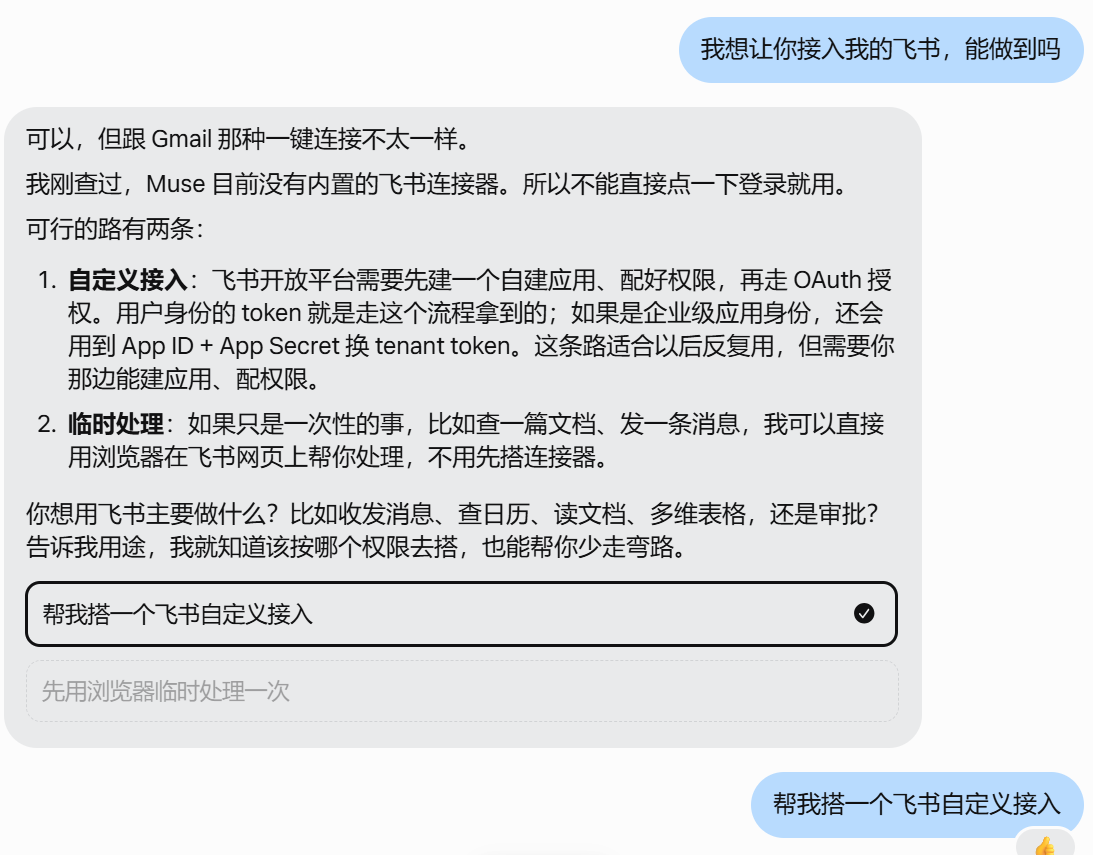
I simply told Muse that I wanted it to connect to my Feishu. It answered that it has no built-in Feishu connector, so there is no one-click option like its Gmail connector, and offered two routes: a custom integration, or handling a single task through its browser. For regular use, pick the custom integration (“帮我搭一个飞书自定义接入”, build me a custom Feishu integration).
Step 2: Get the checklist from Muse
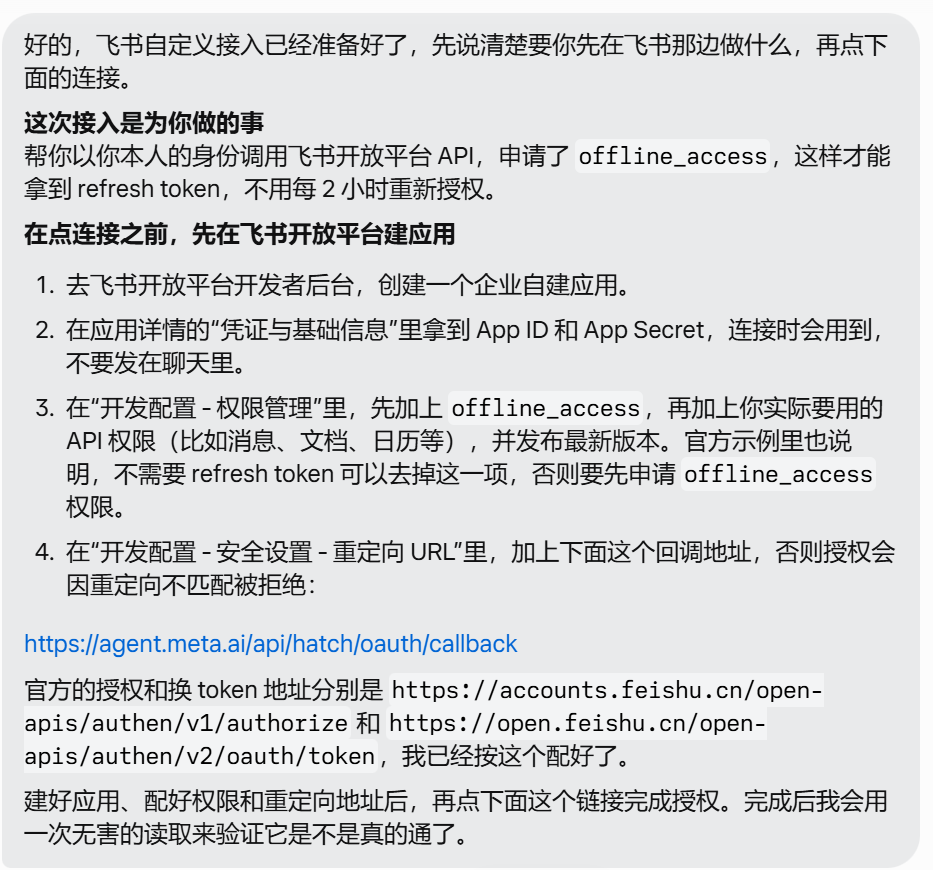
Muse then listed what to set up on the Feishu side, including the callback URL. The list asks for the offline_access permission, so that Muse gets a refresh token and doesn’t need you to re-authorize every 2 hours.
Step 3: Create the app in the Feishu developer console

- Open the Feishu Open Platform (open.feishu.cn), go to the developer console and click Create custom app (创建企业自建应用). I named mine “Muse 助手” (Muse assistant).
- Under Add features (添加应用能力) in the left menu, add the Bot capability.
- Open Credentials and basic info (凭证与基础信息) and note the App ID and App Secret. You’ll need them to authorize Muse. Don’t paste them into any chat.
Step 4: Turn on permissions, add the callback URL, release
In Permission management (权限管理), click Add permissions (开通权限) and search for each permission by its code. These are the messaging permissions on my app:
| Name in the console | Code | Identity | What it’s for |
|---|---|---|---|
| 获取与发送单聊、群组消息 (read and send direct and group messages) | im:message |
App and user | Basic permission for messaging |
| 以应用的身份发消息 (send messages as the app) | im:message:send_as_bot |
App | Lets the “Muse 助手” bot reply in Feishu |
| 读取用户发给机器人的单聊消息 (read direct messages sent to the bot) | im:message.p2p_msg:readonly |
App | The bot receives what you send it in a direct chat |
| 持续访问已授权的数据 (keep access to authorized data) | offline_access |
User | Refresh token, so no re-authorizing every 2 hours |
| 获取群组中用户@机器人消息 (optional: messages that @ the bot in groups) | im:message.group_at_msg:readonly |
App | Only if you want to @ it in group chats |
For direct chats only, the first four are enough. If you want Muse to read documents or calendars, add those permissions too; leave out anything you won’t use.
Then:
- In Security settings (安全设置), add Muse’s callback URL
https://agent.meta.ai/api/hatch/oauth/callbackas a redirect URL. Without it, authorization fails because the redirect URL doesn’t match. - Under Version management and release (版本管理与发布), create a version and release it. The console notes that releasing a custom app needs approval from your organization’s admin.
Step 5: Authorize Muse
Click the connect button Muse sends you, fill in the App ID and App Secret, and finish the authorization. Afterwards Muse runs one harmless read to confirm the connection works.
If you change the app’s permissions later, go back to Muse and authorize again.
Step 6: Start the listener and the persistent connection

- Ask Muse to run a listener on its cloud computer.
- Back in the Feishu console, open Events and callbacks (事件与回调) and set the subscription method to receive events over a persistent connection (使用长连接接收事件). This mode needs no public domain and no encryption settings.
- Click Add events (添加事件) and add receive message (接收消息,
im.message.receive_v1) with app identity. The console lists the permissions this event needs and asks for any one of them; the direct-message permission from step 4 is one. - Release a version again.
Once the listener was running, Muse sent a test message in Feishu saying the credentials are stored on its cloud computer in a file with 600 permissions, so I don’t have to give it the Secret again.
Test: turn the computer off and message it from your phone

Find the “Muse 助手” bot in Feishu and message it directly. I switched my computer off and asked from my phone whether it could still hear me. It replied that it could, because it runs in the cloud and doesn’t depend on my computer, as long as my phone is online.
Keep in mind
Once connected, Muse can call the Feishu APIs you authorized as you. The more permissions you grant, the more it can touch, so only grant what you need. Enter the App Secret only on the authorization page and never paste it into a chat.
The Muse mascot animations are from Meta's official Muse animations.